How to use Boostr
Welcome to Boostr! This guide will carefully walk you through everything you need to know about amplifying casts and earning rewards on Farcaster. Follow the detailed steps below to master the app.
1. Getting Started
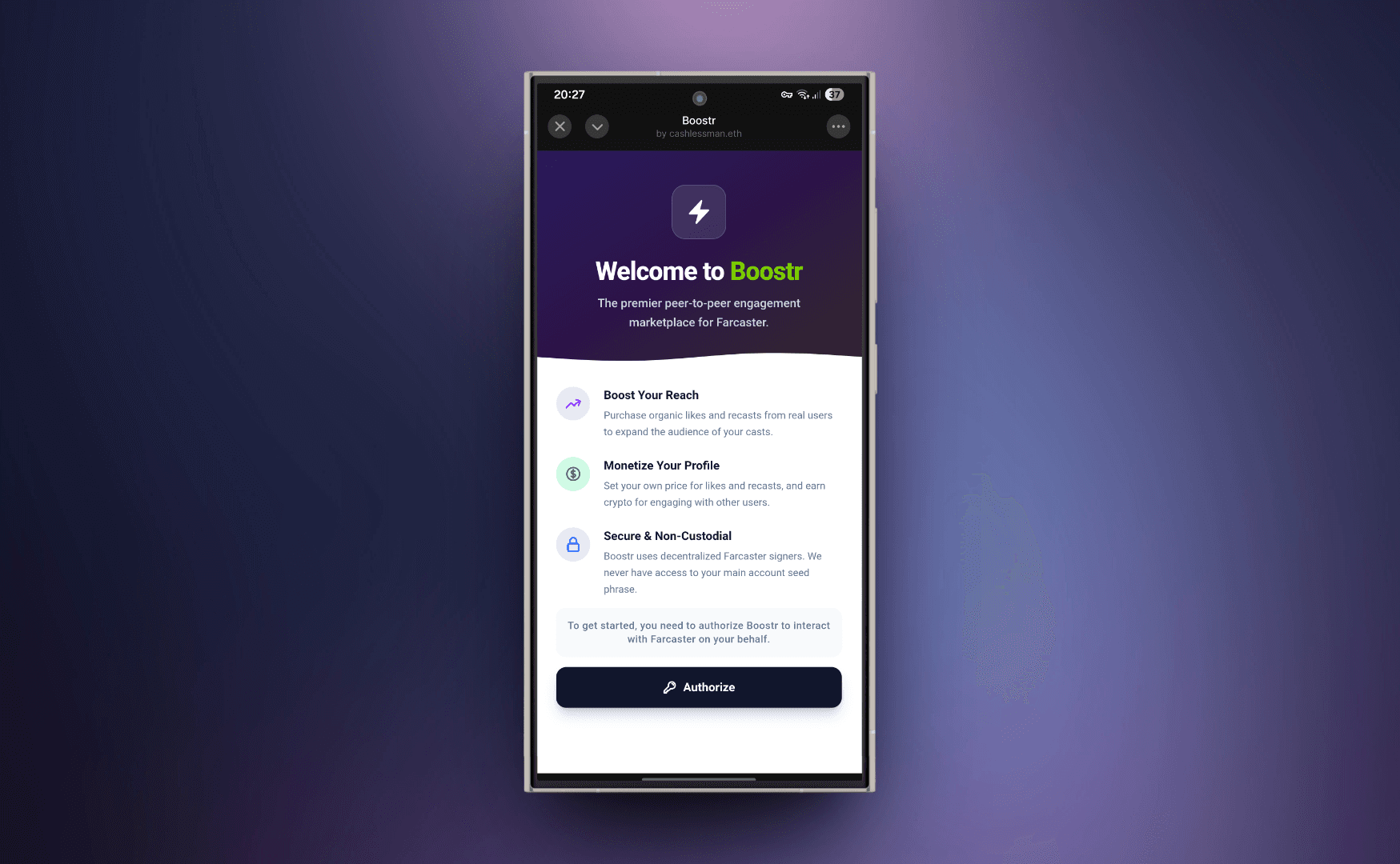
When you first open Boostr, you'll be prompted to authorize a decentralized signer. This allows you to earn rewards by reacting to others. However, this is completely optionalfor buyers! If you just want to amplify your own casts, simply tap 'Do it later' and jump straight into the app.
2. Explore & Select Casts
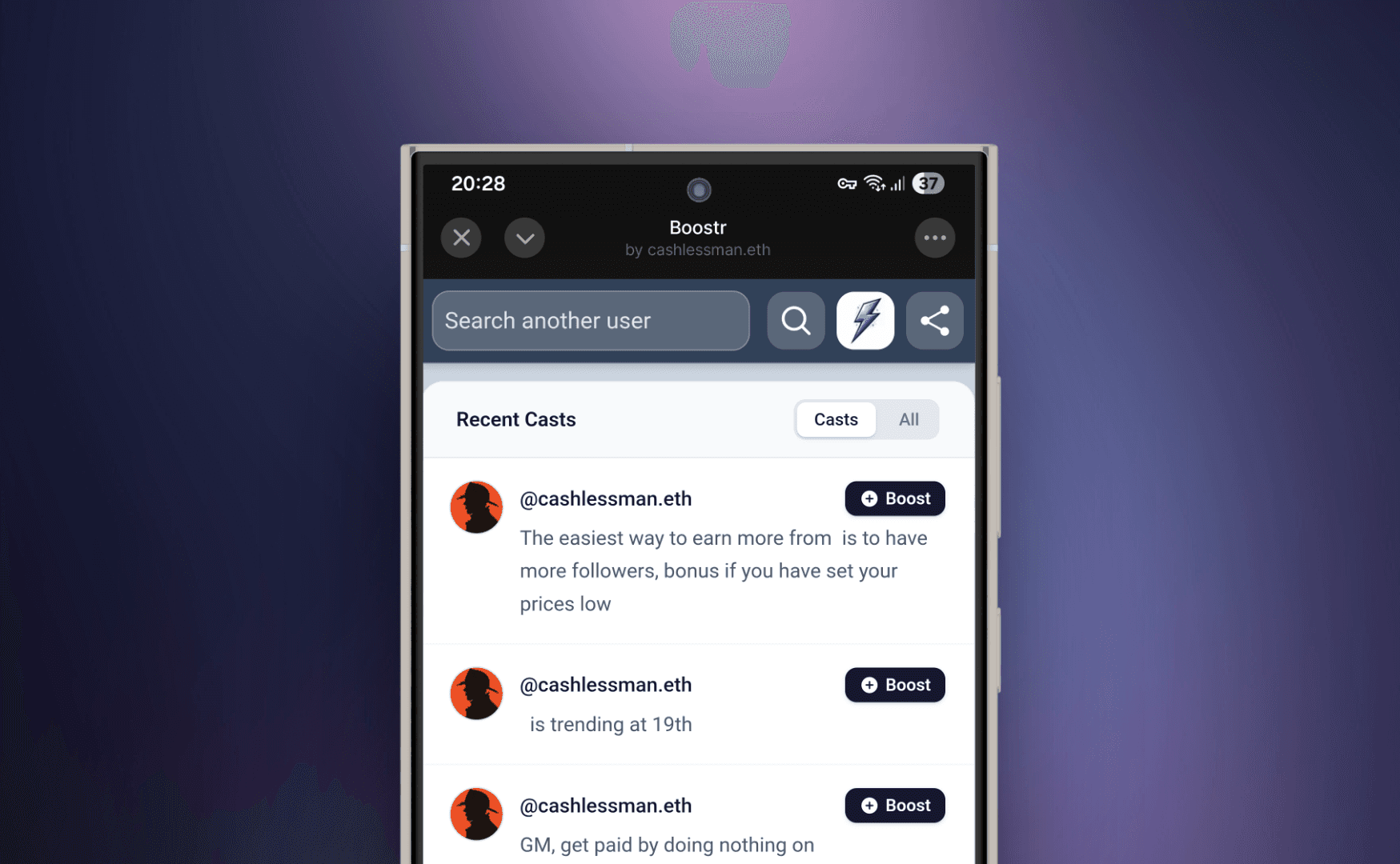
Use the main feed to discover content. You can search for any user to boost their specific casts, toggle between 'Casts' and 'All' replies to find the perfect post, and click 'Boost' to start. You can also buy $boostr tokens or share the app with friends directly from the top navigation bar.
3. Choose Your Purchase Mode
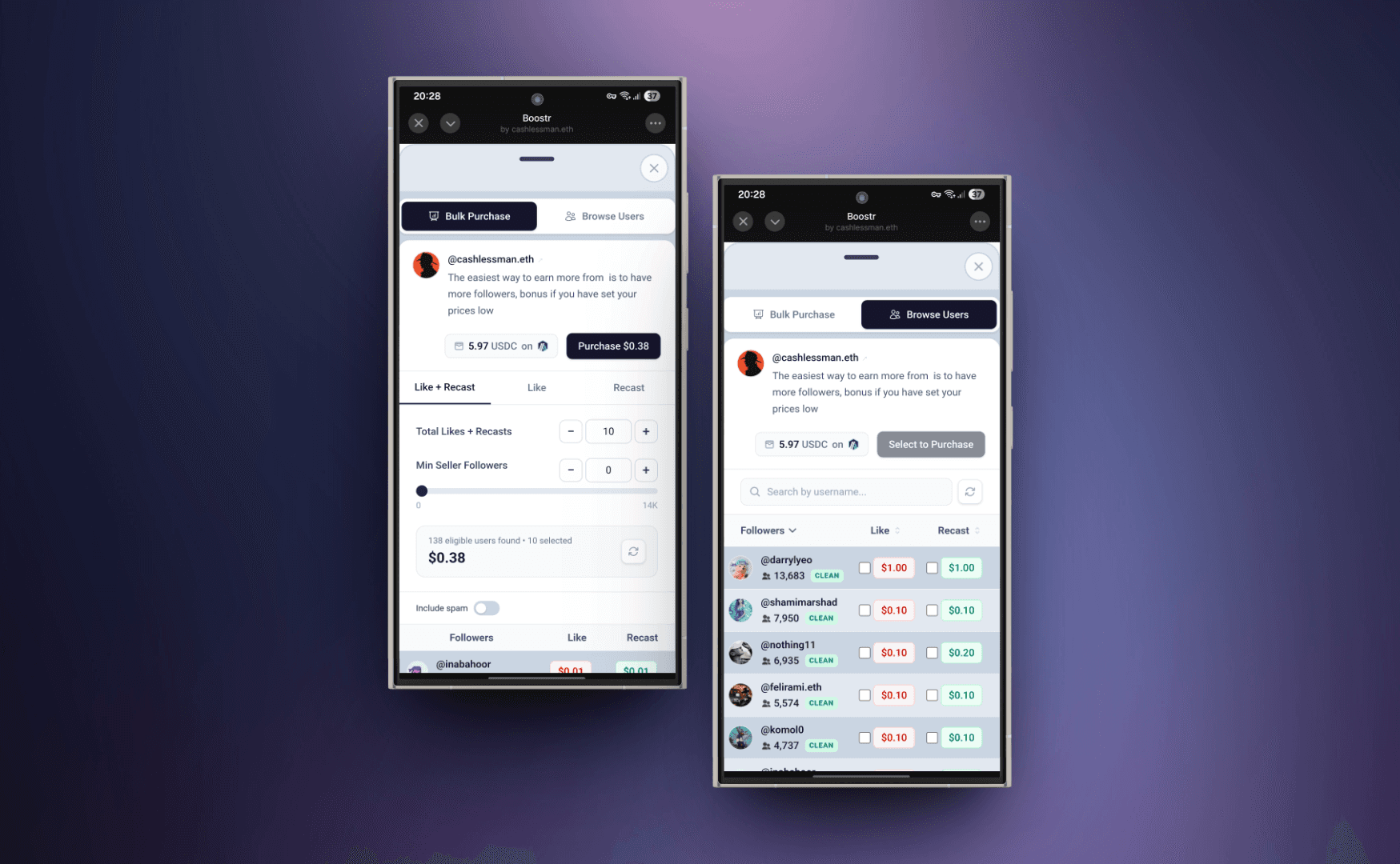
Boostr offers two powerful ways to amplify your content using USDC on the Arbitrum network:
- • Bulk Purchase:You will get reactions from users ordered by lowest price and highest follower count for maximum impact. You can select 'Like + Recast', just 'Like', or just 'Recast'. Customize your order by selecting the total reaction count, setting a minimum seller follower requirement, and applying spam filters.
- • Browse Purchase:Target specific users for your reactions. Search for exact profiles, sort them by follower count, like price, or recast price to find the best value, and view any user's full profile by simply clicking on their profile picture.
In both modes, you can click on the cast anytime to verify and view it directly inside the Farcaster app before finalizing your purchase.
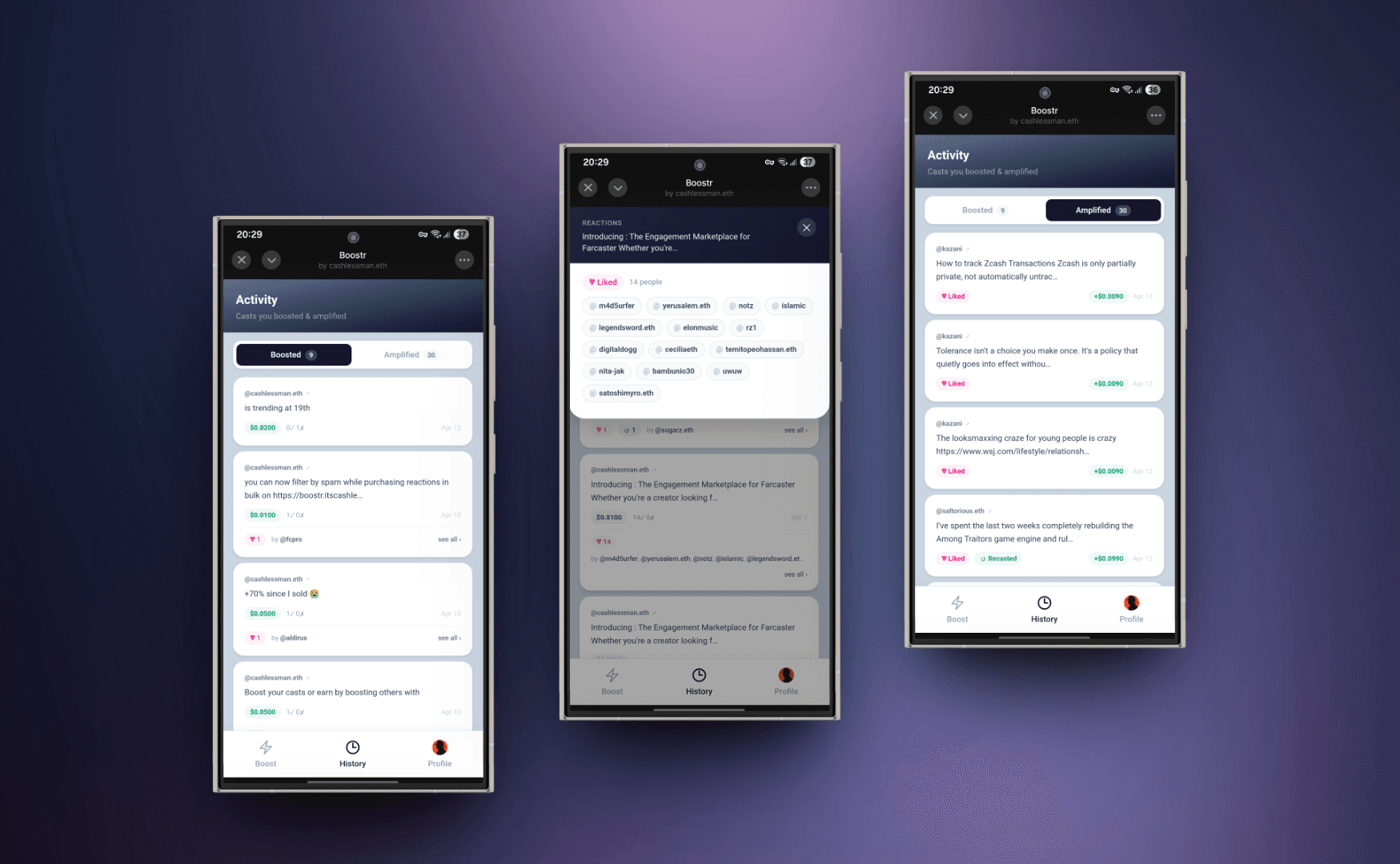
4. Activity & History
Head over to the 'History' tab from the bottom navigation. This page offers a detailed ledger of all your interactions within the app. You can track your past boosts, monitor who has boosted you, and click on any record to view the cast directly on Farcaster and click on individual records to view the detailed transaction receipts.
5. Managing Your Profile
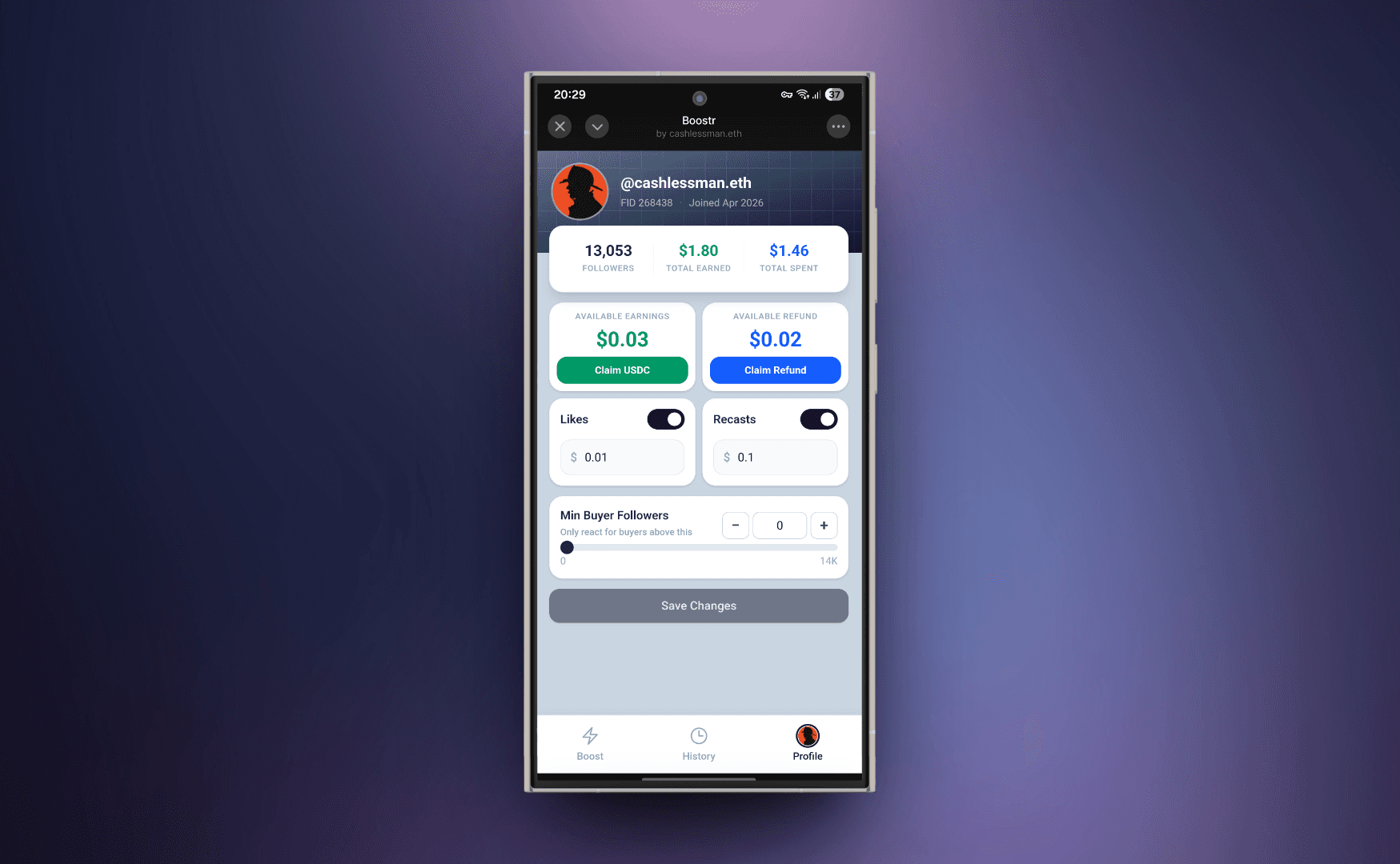
The 'Profile' section is your personal dashboard for managing your Boostr experience. Here you can:
- • Track Stats: Monitor your total follower count, total amount earned from boosting, and total amount spent.
- • Manage Earnings: View and claim your accumulated rewards or refunds directly to your wallet.
- • Configure Interactions: Toggle whether you allow others to buy Likes or Recasts from you, and set your own custom price for these actions.
- • Set Requirements: Define a minimum seller follower count to ensure you only interact with quality accounts and avoid spam.
- • Authorize Anytime:If you skipped authorization earlier, you'll see a dedicated 'Authorize' button here to set up your signer whenever you're ready to start earning.
Everything you need to control your monetization and engagement settings is right here.